Close All EA for MT5: One-Click Button to Close Every Open Trade on the Chart Symbol
- Instant Download
- Lifetime Access
- Free Updates
- 24/7 Support
Code: EX22222
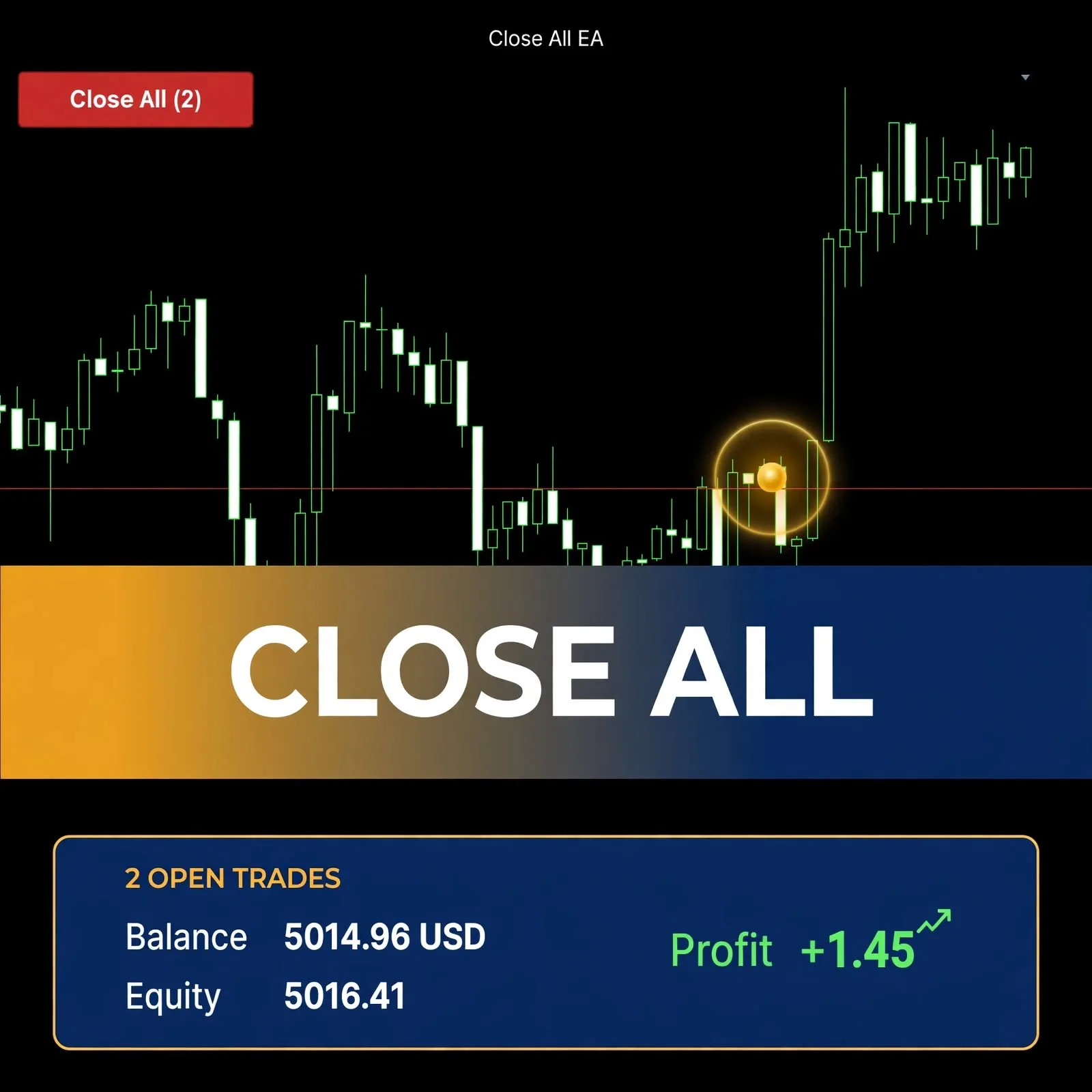
Closing six positions one by one in the Toolbox tab takes a few seconds that feel much longer when price is moving. The Close All EA for MT5 puts a red button on your chart that closes every open position on that chart’s symbol in one click. It works across all magic numbers and retries if the broker rejects a close.
One Red Button, One Symbol, Every Magic Number
- A live position counter on the button. The label reads “Close All (2)” and updates every second, so you can see how many positions are open on that symbol before you click.
- All magic numbers included. Manual trades and trades opened by other EAs on the same symbol are closed together, with no filtering by ID.
- Optional pending-order cleanup. Turn on the delete-pending-orders input and the same click also removes pending orders on that symbol. It is off by default.
- A confirmation prompt you can keep or drop. When it is on, a dialog names the symbol and the number of items before anything closes.
- Retries on rejection. If a close fails, the EA waits 2 seconds and tries again, up to 10 attempts per click.
- A readable failure trail. Each failed close is printed to the Experts log with the ticket number and the broker’s return code.
- No dependence on incoming ticks. The button and counter run on a one-second timer, so they stay responsive on quiet charts.
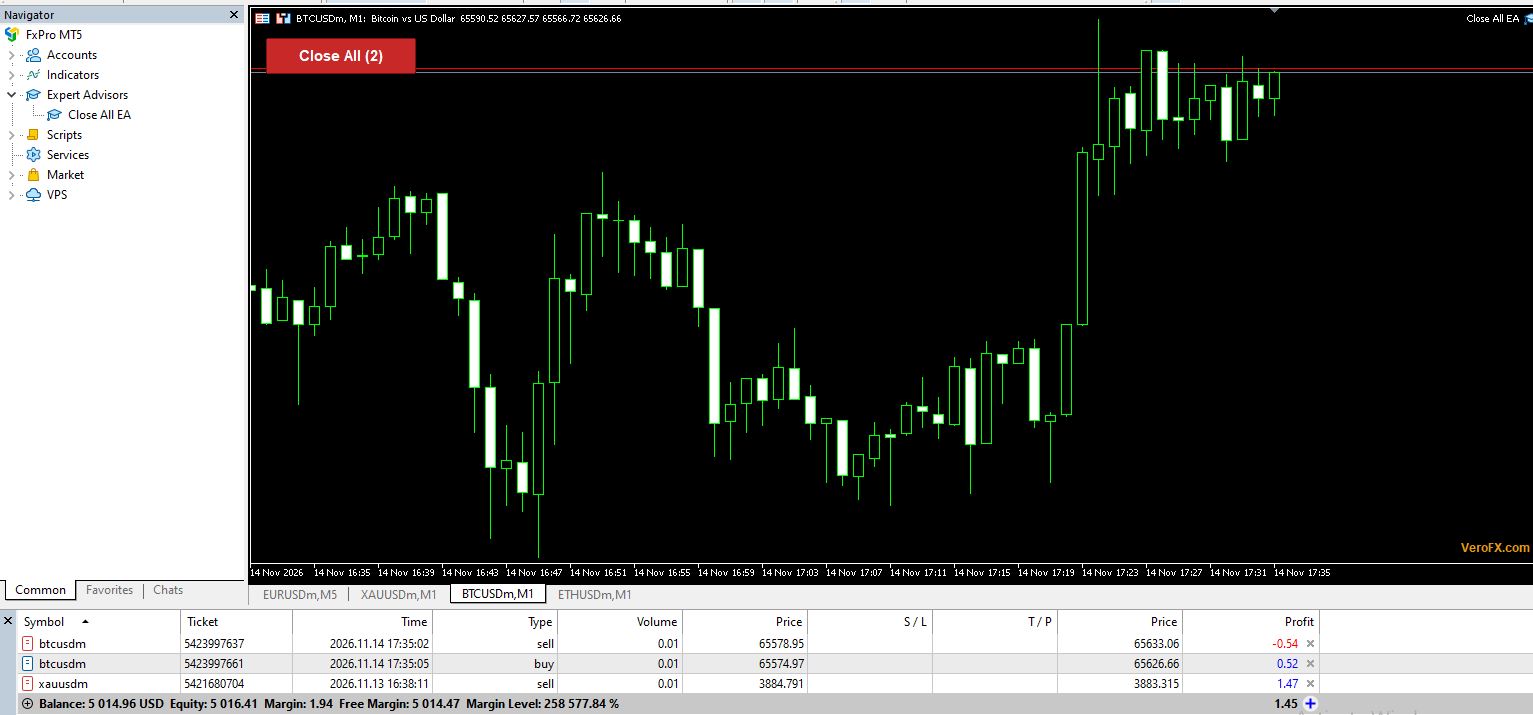
What Happens Between Your Click and a Flat Symbol
When you click, the EA counts open positions on the chart symbol (plus pending orders, if enabled). If the confirmation input is on, you answer a Yes/No dialog first. It then checks that Algo Trading is allowed, because a close request cannot go through without it. If Algo Trading is off, you get an alert and nothing is sent.
If the checks pass, it works through the list from the last position to the first and sends a market close for each one. The fill mode is picked automatically from the symbol’s settings. Anything the broker rejects stays in the queue, and the timer retries every 2 seconds. After 10 attempts, an alert tells you how many items could not be closed and points you to the Experts log.
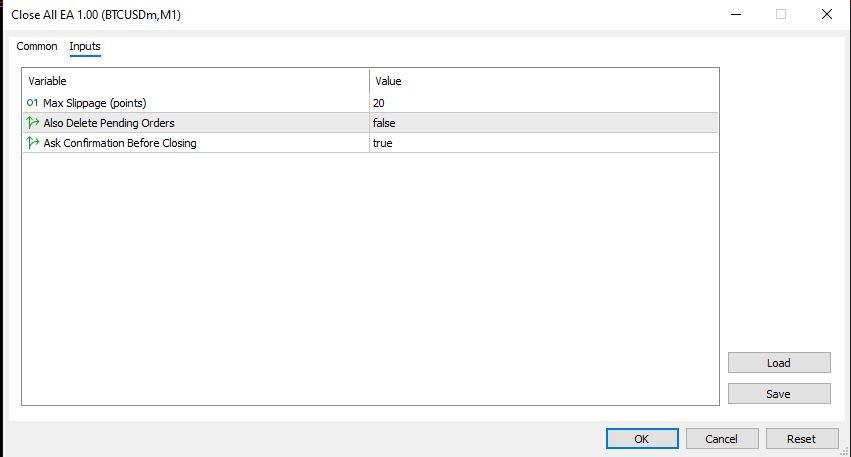
The Three Inputs in the Settings Window
| Input | Default | What it controls |
|---|---|---|
| Max Slippage (points) | 20 | The price deviation allowed when sending each close |
| Also Delete Pending Orders | false | Whether pending orders on the symbol are removed too |
| Ask Confirmation Before Closing | true | Whether a Yes/No dialog appears before closing |
The button position, retry interval and attempt limit are fixed in the code and are not exposed as inputs. A small “VeroFX.com” label sits in the lower-right corner of the chart. Clicking it shows the website address in an alert.
MT5 Only: Platform and Account Notes
This EA is written for MetaTrader 5. It does not run on MT4. It uses the position-based trade functions of MT5 and works on the symbol of the chart it is attached to.
- Algo Trading must be enabled in the terminal, and the EA must be allowed to trade in its Common tab.
- The terminal must be open and connected. The EA cannot send closes while the platform is offline.
- Compatibility may vary by broker and account type.
Attaching the EA to a Chart in MT5
- In MT5, choose File > Open Data Folder, then open MQL5 > Experts.
- Place the EA file there. If you have a source (.mq5) file, compile it in MetaEditor first.
- Refresh the Navigator panel. The EA appears under Expert Advisors.
- Drag it onto the chart of the symbol you want to manage and confirm Algo Trading is on.
Because the EA acts on one symbol per chart, attach it to a separate chart for each symbol you trade. Try it on a demo account first so you know how the confirmation prompt and the counter behave. You can also use the account panel indicator to watch balance, equity and margin level while positions close.
A Fit for Traders Who Manage Several Positions, Not for Anyone Seeking Signals
A good match if you:
- Hold several positions on one symbol and want a single exit control.
- Run other EAs and want a manual override on the same symbol.
- Want a counter that shows your open position count at a glance.
Probably not for you if you:
- Need to close trades across all symbols with one click. This EA acts only on the chart symbol.
- Want to close only trades from one strategy or magic number. It closes all of them.
- Expect entries, exits or analysis. It opens no trades and gives no signals.
When a Close-Everything Button Can Cause Problems
A close-all tool is a blunt instrument, and its limits matter most in fast markets.
- There is no undo. Closing is final, and a mis-click costs you the open positions. Keep the confirmation prompt on unless you have a reason to turn it off.
- Closes happen at market. Spread, slippage and execution speed vary by broker and by conditions. The final price can differ from what you saw when you clicked.
- A close can be rejected. The retry logic helps, but it does not guarantee every position closes. Check the Experts log if the alert says some items remain.
- Other EAs can reopen trades. If another EA is still running on the symbol, it may open new positions after you close. Disable it first if that is not what you want.
- It depends on your setup. A disabled Algo Trading setting, a dropped connection or a closed terminal will stop it from working.
- It manages only the chart symbol. Positions on other symbols stay open.
Closing trades is not risk management by itself, so read the forex risk management complete guide to see where an emergency exit fits into a wider plan.
Questions About Symbols, Magic Numbers and Rejected Closes
Does it close trades on every symbol in my account?
No. It closes only positions on the symbol of the chart where it is attached. To cover several symbols, attach it to a chart for each one.
Will it close trades opened by other EAs?
Yes. It does not filter by magic number, so manual trades and trades from other EAs on that symbol are all included.
Does it delete pending orders?
Only if you set the pending-orders input to true. By default, pending orders are left alone.
What if the broker rejects a close request?
The EA waits 2 seconds and tries again, up to 10 attempts per click. If positions remain, it shows an alert and writes the ticket and return code to the Experts log.
Disclaimer
This product is provided for educational and analytical purposes only and is not financial advice. Forex and CFD trading involves a high level of risk, and you can lose some or all of your capital. Leverage can magnify both gains and losses. No product can guarantee profits, and results vary. Never trade with money you can’t afford to lose.
Expert Advisors execute trades automatically and can incur losses, including during unusual market conditions, news events, or technical failures. Backtested or past results don’t guarantee future performance. Test on a demo account first and understand the settings before using real funds.
MetaTrader, MT4, and MT5 are trademarks of their respective owners. This product is not affiliated with or endorsed by MetaQuotes Ltd.