Account Panel: Balance, Equity and Margin Level Indicator for MT5
- Instant Download
- Lifetime Access
- Free Updates
- 24/7 Support
Code: IN16832
Your account’s numbers matter most while trades are open, yet in MT5 they sit in a separate window at the bottom of the screen. Account Panel is an MT5 indicator that brings the key ones onto the chart you’re already watching: balance, equity, floating P/L, free margin, and margin level, in one compact panel.
Five Account Figures Beside Your Price Chart
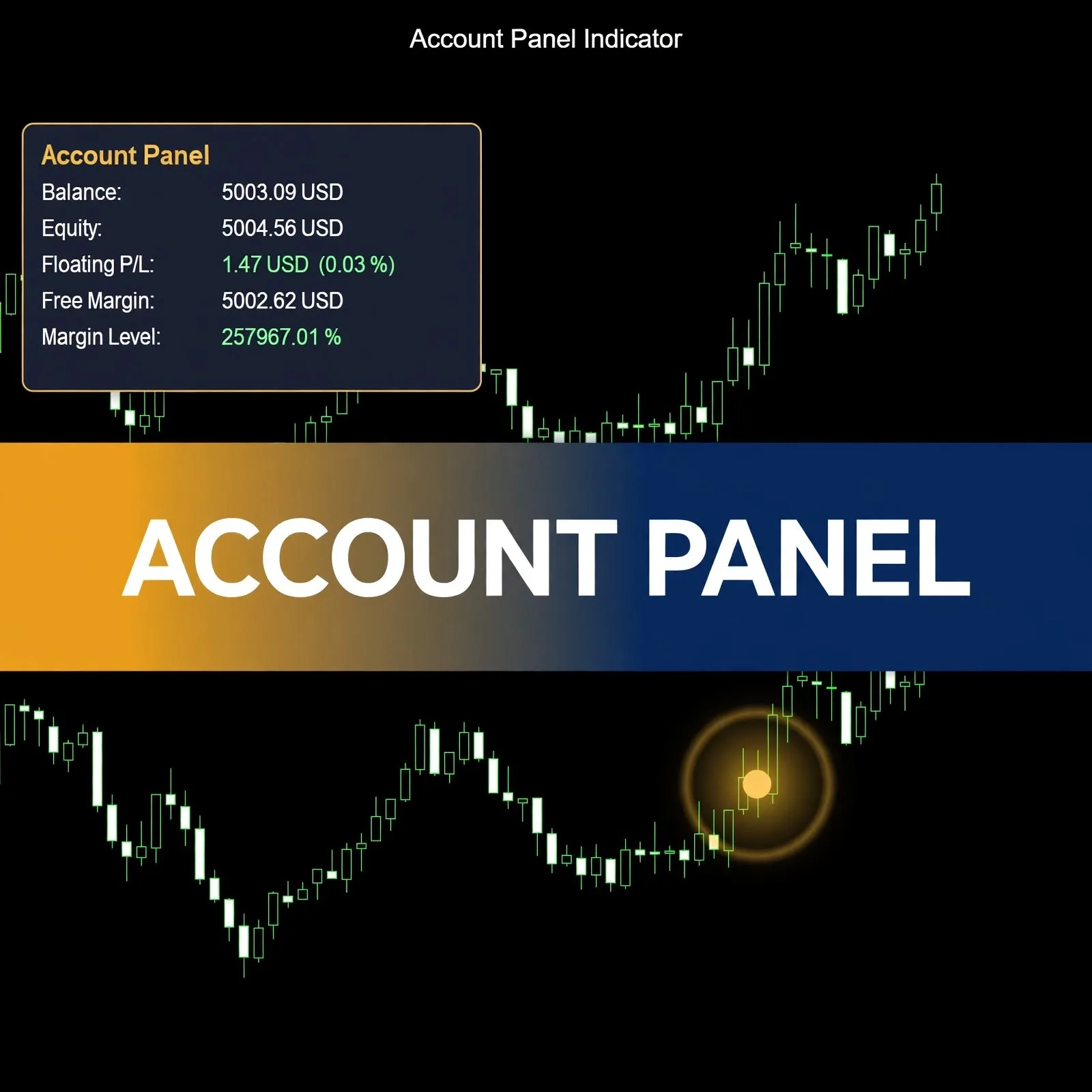
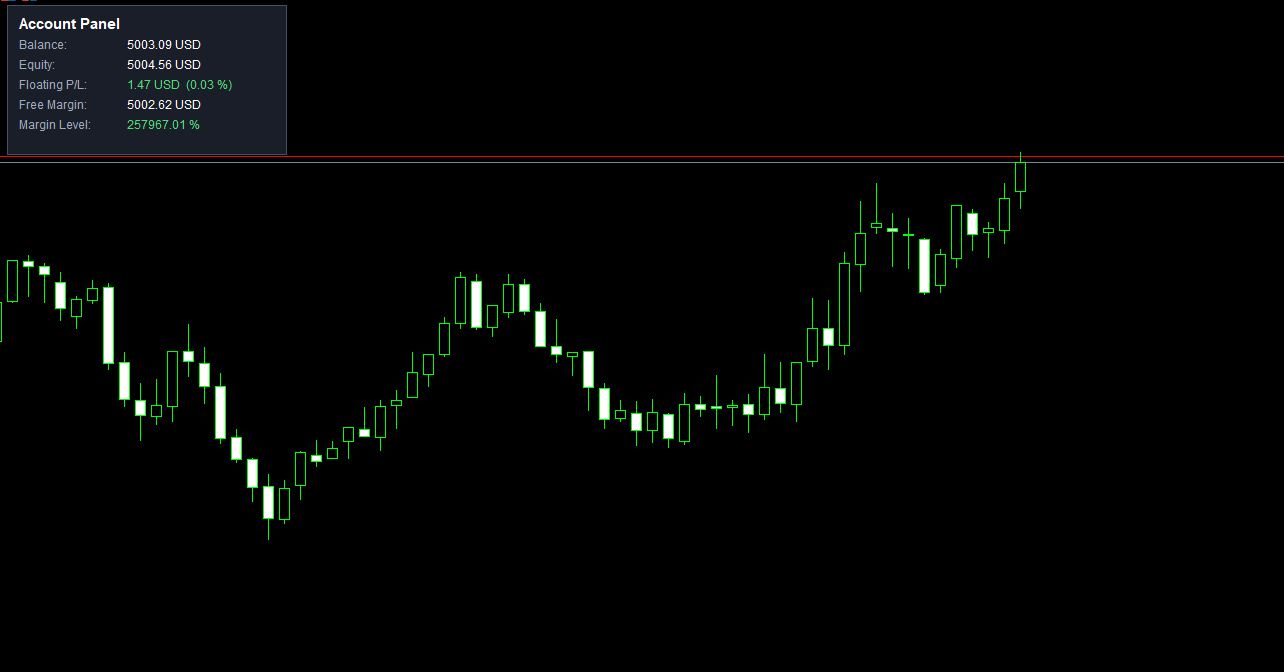
The panel in the product screenshot lists five lines:
| Panel line | Example shown |
|---|---|
| Balance | 5003.09 USD |
| Equity | 5004.56 USD |
| Floating P/L | 1.47 USD (0.03 %) |
| Free Margin | 5002.62 USD |
| Margin Level | 257967.01 % |
Floating P/L and Margin Level are highlighted in green in the example. The Floating P/L line shows an amount in account currency together with a percentage. The values above show the panel’s layout and are example readings, not trading results.
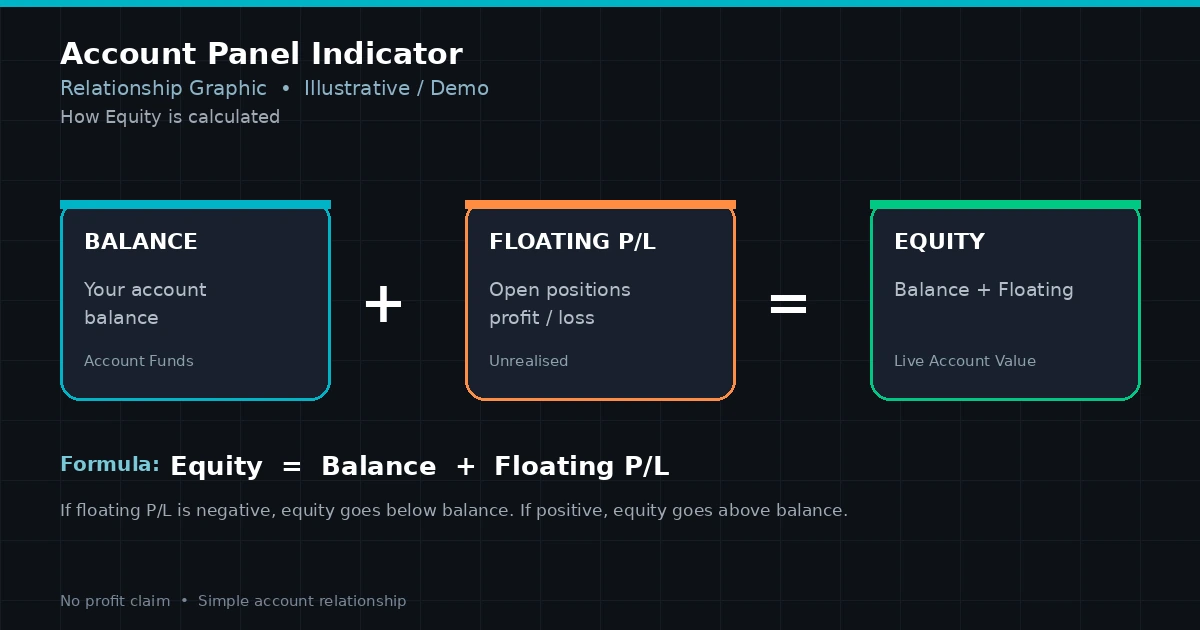
Balance, Equity, and Floating P/L: How the Three Relate
Balance is the account total from closed trades and deposits. Equity is balance plus the floating profit or loss of open positions. Floating P/L is the difference between the two. In the example, 5004.56 − 5003.09 = 1.47, which matches the Floating P/L line.
Seeing all three together makes it easy to tell how much of your current equity depends on trades that are still open. The Floating P/L percentage also shows that difference relative to the balance, which helps when the dollar figure alone doesn’t say much.
Free Margin and Margin Level: Reading Your Margin Headroom
Free margin is the equity not currently tied up as margin for open positions. Margin level is equity divided by used margin, expressed as a percentage. A higher margin level means more headroom, and a very large number, like the one in the example, typically means little margin is in use.
Brokers set their own margin call and stop-out thresholds, and those levels differ. Check your broker’s rules so you know where your margin level becomes a concern. For how account settings affect your numbers, see what account currency means.
Settings Window: Common, Colors, and Visualization Tabs
The indicator’s settings window has Common, Colors, and Visualization tabs, with no Inputs tab, so there are no numeric settings to tune. The Visualization tab shows the indicator enabled on all timeframes, from minutes to monthly, and Show in Data Window is checked.
The screenshots were captured on a gold symbol (XAUUSDm) on an M1 chart. Other symbols aren’t specified on this page, so test on a demo account with your own instruments. Compatibility may vary by broker and account type.
Installing an Account Panel .ex5 File in MT5
MT5 indicators are normally installed as .ex5 files. In MT5, choose File > Open Data Folder, then MQL5 > Indicators, and copy the file there. Refresh the Navigator panel (or restart MT5), then drag Account Panel onto a chart.
A Fit for Traders Who Keep an Eye on Equity and Margin
Likely a good fit if you:
- Keep positions open and want equity and margin visible without switching windows
- Watch margin level to stay clear of your broker’s thresholds
- Prefer a plain panel over a configurable dashboard
Probably not for you if you:
- Want an indicator that analyzes price or suggests entries
- Expect it to limit risk, close trades, or stop losses for you
- Need a tool with adjustable numeric settings
Where an Account Display Can Give a False Sense of Control
A panel shows your account’s state. It doesn’t change it:
- It’s display only. Seeing a healthy margin level doesn’t protect you from a fast adverse move, a gap, or slippage.
- Floating isn’t realized. Floating P/L can disappear or reverse before you close a position, so it isn’t money you have.
- Margin rules belong to your broker. Margin call and stop-out levels vary, and a high margin level today says nothing about tomorrow.
- Constant monitoring can push decisions. Watching a live profit-and-loss figure tick up and down can encourage early exits or holding losers. How emotions affect trading decisions covers that pattern.
- Figures are a snapshot. Values change with every price update and trade.
- The indicator displays information based on your account data and can mislead if you rely on it alone.
Margin and equity belong inside a risk plan with defined position sizes and stops. The forex risk management complete guide is a good place to build one.
Questions About Equity, Margin Level, and Panel Settings
What’s the difference between balance and equity?
Balance reflects closed trades and deposits. Equity adds the floating profit or loss of open positions, so it moves with the market while trades are open.
What does a very high margin level mean?
Margin level is equity as a percentage of used margin. A very large number generally means little margin is currently in use. Your broker’s thresholds determine when it becomes a concern.
Can I change the panel’s settings?
The settings window has Common, Colors, and Visualization tabs only, with no Inputs tab, so there are no numeric inputs to adjust.
Which symbols and timeframes does it work on?
The screenshots show a gold symbol on M1, and the Visualization tab shows all timeframes enabled. Test on a demo account with your own instruments. Compatibility may vary by broker and account type.
Disclaimer
This product is provided for educational and analytical purposes only and is not financial advice. Forex and CFD trading involves a high level of risk, and you can lose some or all of your capital. Leverage can magnify both gains and losses. No product can guarantee profits, and results vary. Never trade with money you can’t afford to lose.
Indicators display information based on historical price data and may produce misleading or delayed signals in some market conditions. They should be used as one part of a complete trading plan with proper risk management.
MetaTrader, MT4, and MT5 are trademarks of their respective owners. This product is not affiliated with or endorsed by MetaQuotes Ltd.